
Documentation
-
Momentum
-
MLOps
-
Impulse EDW
-
- 2.1 Create a Warehouse
- 2.2 Edit Warehouse
- 2.3 Datasources In Warehouse
- 2.4 Ingesting Data Into Tables or Datasources
- 2.4.1 Ingesting From Momentum Data Pipeline
- 2.4.2 Uploading File Using Impulse UI
- 2.4.3 Ingesting From External File/Storage System
- 2.5 Add Data to Existing Tables
- 2.5.1 Update Existing Index
- 2.6 Delete Table Records (Rows)
- 2.7 Delete Tables or Datasources
- 2.8 Monitoring Indexing Tasks
- 2.9 View Datasource Stats
-
Inset BI
- Alerts and Reports
- Connecting to a new database
- Registering a new table
- Creating charts in Explore view
- Manage access to Dashboards
-
- Articles coming soon
-
- Articles coming soon
-
- Articles coming soon
-
- Articles coming soon
-
- Articles coming soon
-
APIs
- Articles coming soon
< All Topics
Print
4.5 Edit User
This section describes how to edit user information, reset password, and assign/revoke access roles. You must be an admin to perform the following steps:
- Main navigation menu –> Expand Users and Roles –> Manage Users
- Click Edit link located at the far right column of the user you want to edit
- You can update user information and save.
Reset User Password
There are two ways to reset user password:
- Send Password Reset Link: This is a secure way to send a link to user’s email. The user should follow the link to change their password. This feature will work only if the email service (SMTP config) is configured.
- Generate Temp Password: This will create a random password that you can share with the user. User must change this password on the first login.
Assign or Revoke Access Roles
- To add additional roles to this user, check the boxes corresponding to the role/roles you want to assign to this user.
- To remove roles, uncheck the box you want to remove the roles from this user’s access.
- Click Update button to save the changes.
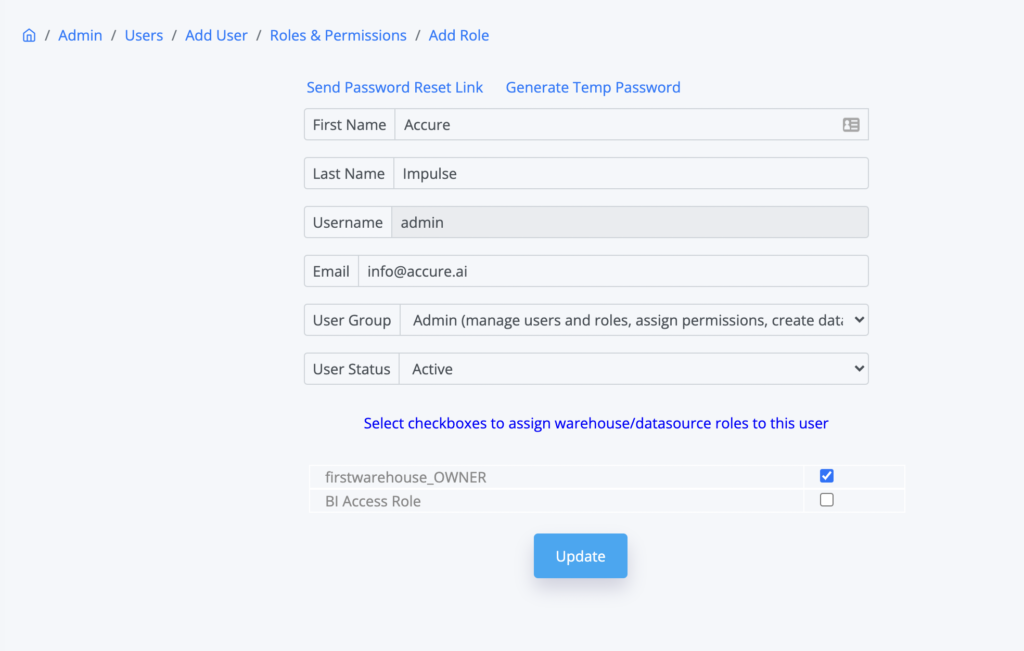
Table of Contents