
Documentation
-
Momentum
-
MLOps
-
Impulse EDW
-
- 2.1 Create a Warehouse
- 2.2 Edit Warehouse
- 2.3 Datasources In Warehouse
- 2.4 Ingesting Data Into Tables or Datasources
- 2.4.1 Ingesting From Momentum Data Pipeline
- 2.4.2 Uploading File Using Impulse UI
- 2.4.3 Ingesting From External File/Storage System
- 2.5 Add Data to Existing Tables
- 2.5.1 Update Existing Index
- 2.6 Delete Table Records (Rows)
- 2.7 Delete Tables or Datasources
- 2.8 Monitoring Indexing Tasks
- 2.9 View Datasource Stats
-
Inset BI
- Alerts and Reports
- Connecting to a new database
- Registering a new table
- Creating charts in Explore view
- Manage access to Dashboards
-
- Articles coming soon
-
- Articles coming soon
-
- Articles coming soon
-
- Articles coming soon
-
- Articles coming soon
-
APIs
- Articles coming soon
< All Topics
Print
4.4 Add User
To add a user and grant access to warehouses and tables, follow the steps:
- Expand Users and Roles from the main navigation menu
- Click Manage Users
- Click the plus icon located at the top of the page (see Figure below)
- Fill out the New User form, as described below
- First Name: First name of the user
- Last Name: Last name of the user
- Username: a unique username without any space or special characters. This should not be an email.
- Password: Give a default password that user must change on the first logon
- Email: User email, must be unique email not used with any other user
- Group: Select the user group. Learn more about the group and privilege
- At the bottom of new user form, select the checkboxes corresponding to roles to assign one or more roles to this user
- Click Save
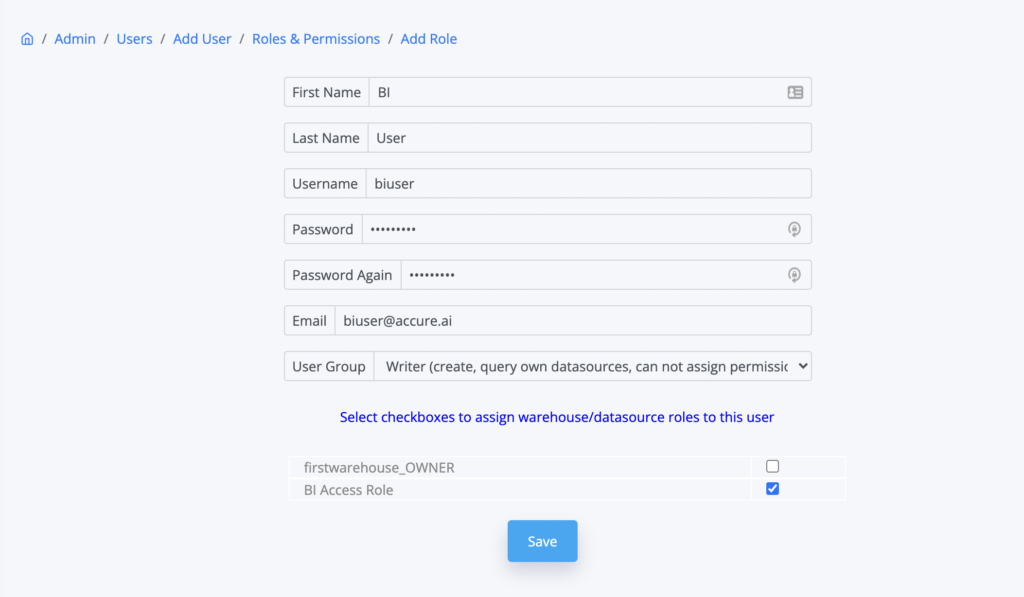
Table of Contents